You can delete any Assignment, or any group of selected Assignments. Deleted items cannot be retrieved.
When deleting Assignments, you can also choose to include Appointments, Attendance, Chore, and/or Day Off entries in your selection. HSTOnline will show you how many of each type of item you have
selected for deletion.
This Help Page covers deleting existing Assignments. You can also preform the following actions on Assignments:
Deleting Assignments from the Agenda - Calendar View
You can delete any single Assignment from the Agenda - Calendar view. To delete multiple items at the same time, use the Delete action in the Agenda - List View.
On the HSTOnline menu, click or touch 'Agenda - Calendar View' in the 'Schedules and Planning' box.
Set the filters to view the item you want to remove.
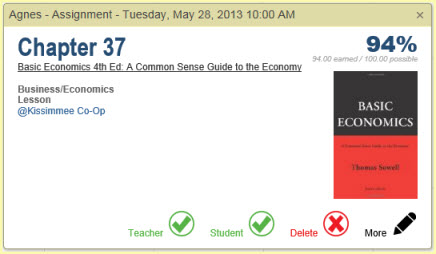
Click or touch on the item you want to remove to open the tool tip window.
Agenda - Calendar View Tool Tip
Click or touch 'Delete' to open the Confirm Delete window for that item. The Delete option will only appear when signed in under an Administrator or Teacher account.
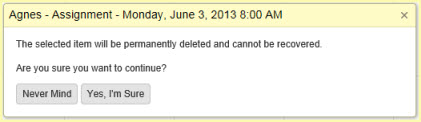
Confirm Delete
Click or touch 'Never Mind' to keep the item; click or touch 'Yes, I'm Sure' to remove the Day Off entry from your database.
Deleted items cannot be retrieved.
Click the checkbox for each Assignment you want to remove.
You can use your mouse to click and drag over contiguous Assignments in the list to select those items.
On a touch device, you can touch and drag your finger over contiguous Assignments in the list to select those items.
Click or touch the 'Select All' badge to select all the items in the list. Note: You can delete Appointments,
Assignments, Attendance entries, Chores and
Day Off entries at the same time. Just include all the items you want to delete in your selection.
Click or touch the Action button and choose 'Delete' to open the Confirm Delete window.
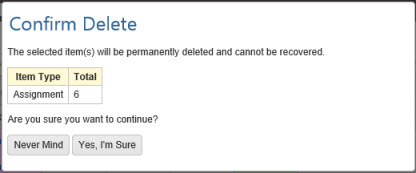
HSTOnline will show you the number of Appointments selected for deletion. (Fig. 1)
Confirm Deletion of Assignments (Fig. 1)
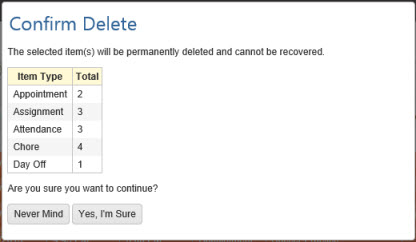
If you your selection includes other types of items, those types and the number of each will be listed in the Confirm Delete window. (Fig. 2)
Confirm Deletion of Multiple Item Types (Fig. 2)
Click or touch:
'Never Mind' to cancel the delete process.
'Yes, I'm Sure' to complete the deletion process. HSTOnline will delete all of the selected items from the
database. Deleted items cannot be retrieved.