Introduction
The Resources report provides a listing of all books, textbooks, etc. tied to your Student's Assignments. You can run the report for incomplete Assignments, complete Assignments, or both, for any date range you choose.
The report will group your items by Subject/Course according to their Resource designation in the Library. The Resource title will always be included. You can choose from a number of other details which can be included. See the options, below.
The Resource field must be enabled in order to utilize this report.
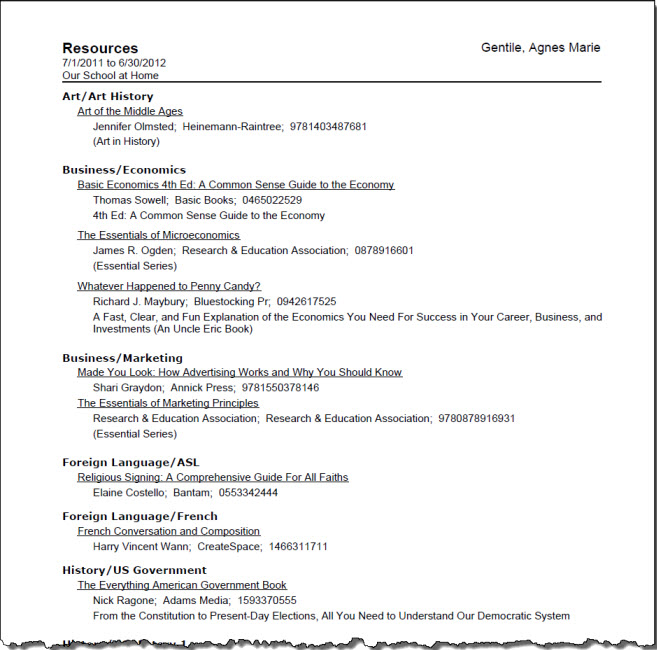
Resources Report Options
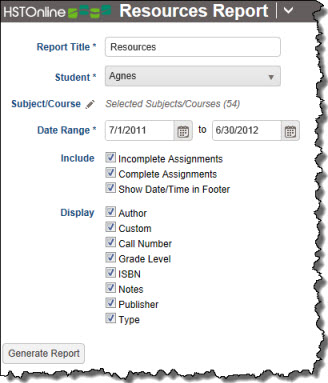
Set the options needed for the report. HSTOnline will remember your settings until you change them.
Report Title
The default name for this report is: Resources. You can change the Report Title to anything you like, up to 150 characters.
Student
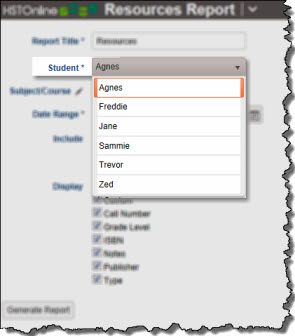
Select a Student from the drop down list. The Resources report can be created for one Student at a time.
Subject/Course
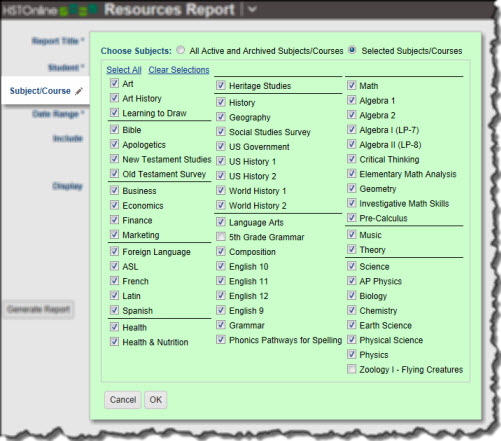
Click or touch the Subject/Course field name or the pencil icon to choose the Subjects/Courses you want to include in the report. The Subject/Course option window includes all Active and Archived Subjects and Courses for selection. The report will group your items by Subject/Course according to their Resource designation in the Library. For instance, if you choose just Math/Algebra 1, but your Math textbooks are tied to the 'All Subjects' selection in the Library, those items will not appear in the report unless you set the Subject/Course filter to 'All'.
Date Range
Select a date range for the report. Enter a date using the mm/dd/yyyy format or click the Calendar icon to select a date.
Include
- Incomplete Assignments: Resources tied to any Assignment which has no checkmark in the Complete: Teacher box and falls within the selected date range will be included in the report.
- Complete Assignments: Resources tied to any Assignment which has a checkmark in the Complete: Teacher box and falls within the selected date range will be included in the report.
- Show Date/Time in Footer: Choose whether to display the date and time when the Resource report was generated. The date and time will be determined based on your Time Zone settings.
Display
The Resource Title will always be included. Choose which Resource fields to include in the report.
Generating a Resources Report
- On the HSTOnline menu, click or touch 'Resources' under the 'Reports' section.
- Fill out the Report options as needed. HSTOnline will remember your settings until you change them.
- Click or touch the Generate Report button. HSTOnline will create the report using the options you have set.
- When the report is ready, the Pick Up Report button becomes visible. Click or touch it to download the generated file.
- All reports are created as PDFs which you can review, print, email as you would with any PDF document.
- If you made an error in your option settings, just reset the options as needed and click or touch Generate Report again.