Related Student Topics
- Agenda - Calendar View
- Agenda - List View
- Grade Levels
- Grading Overview
- Skills Progress
- Student List
- Transcript Supplemental
Help & User Guide
Lesson Plans can be a very useful part of using HSTOnline. They allow you to do all your planning in advance, without getting tied down to specific dates too far in advance. The Scheduler tool is used to assign Lesson Plan items to one or more Students at the same time.
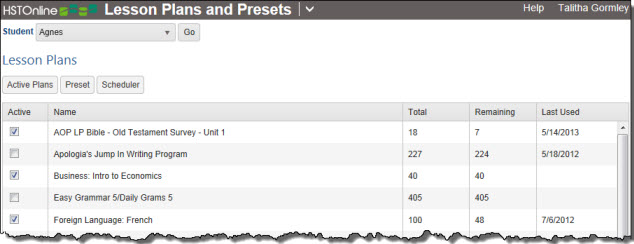
From the Student side, you can set your Active Lesson Plans for that Student, create a Preset schedule of days and times/blocks when your Student works on various Subjects/Courses and use the Scheduler to create Assignments for the Student for one or more Lesson Plans at the same time. Setting a list of 'Active Lesson Plans' for your Student also helps you track your Student's progress in the Lesson Plan. The Student: Lesson Plan and Presets area will let you know how many un-used items are left in each Lesson Plan for the Student and the date on which the last Assignment was created from each plan.
Whether using Lesson Plans or not, you can set up Preset entries for your Student to develop a schedule of days and times/blocks when each Subject/Course is studied. These entries can then be utilized when creating multiple Assignments with the Add-Multiple or Copy Over Date Range functions, or when using Scheduler with one or more Lesson Plans. By creating these patterns ahead of time, you don't have to remember which student has which class at which time. In multiple student homeschools you can, for instance, schedule math at different times for each Student to insure you are available to work individually with each Student as necessary. By utilizing the Preset option, you can set that pattern once and then let HSTOnline do the rest.
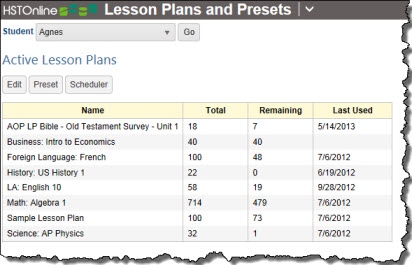
Use this area to keep track of the Lesson Plans you are using for the Student in the current School Year. You can add or remove plans from the list at any time. The Active Lesson Plan table will show you the name of the Lesson Plan, the number of items in the Lesson Plan that have yet to be assigned for that student, and the last date used for an Assignment created from the Lesson Plan.
Each Student has his own list of Active Plans. The list will display the Lesson Plan Name, the total number of items in the Lesson Plan, the number of items remaining in the Lesson Plan to be assigned for that Student, and the date on which the last Assignment was created from the Lesson Plan for this Student, using the Scheduler tool. If you have deleted or otherwise edited those Assignments, those changes are not reflected here.
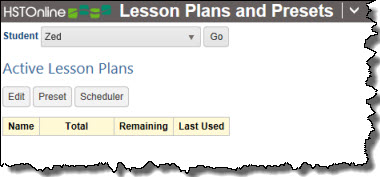
If you are using the Lesson Plan feature, creating an Active Lesson Plan list for your Student will help you keep track of how far they have progressed through each plan. You can add or remove plans from this list at any time. HSTOnline will remember the 'used' status for each Student in each plan whether the plan is listed here or not. Resetting the Used Status of Lesson Plan items for a Student will update this list accordingly.
Each time you create Assignments from Lesson Plan items, copy Assignments over a Date Range, or create multiple Assignment entries, you need to tell HSTOnline how to distribute those items over dates, days of the week, and time or block of day. Using the Preset feature, you can set that information in advance - setting specific days of the week and times/blocks on those days for each of your Student's Subjects and Courses.
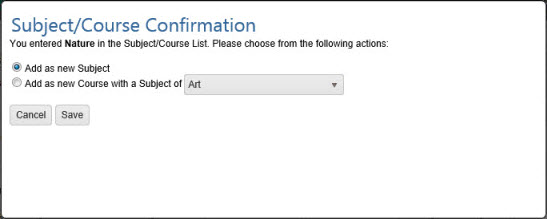
Each entry can have a Subject or Subject/Course designation. When creating your Assignments using the Preset option, HSTOnline will first look for an exact match for the Subject/Course of the Assignments. If no exact match for both Subject and Course is found, then HSTOnline will look for a match of just the Subject. If no match of any kind is found, then the Daily pattern will be followed.
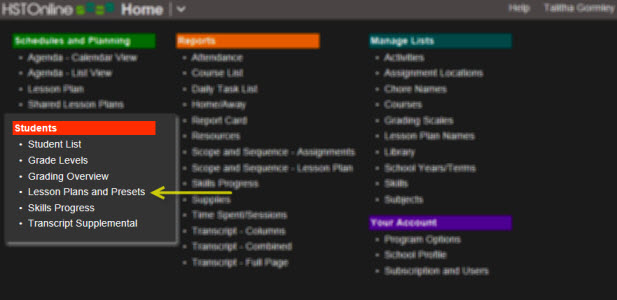
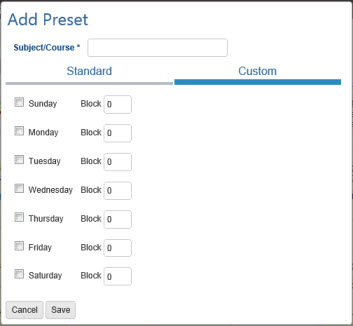
You can use the Preset area in the Student: Lesson Plans and Presets area to create a pattern of days and times for HSTOnline to follow when creating Assignments:
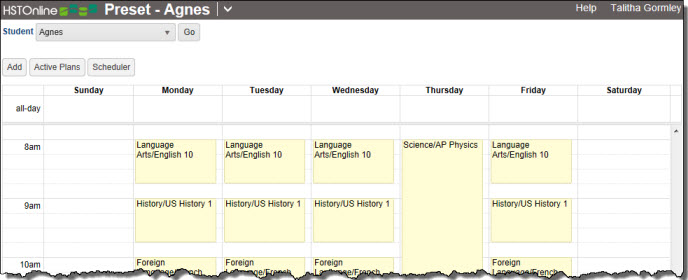
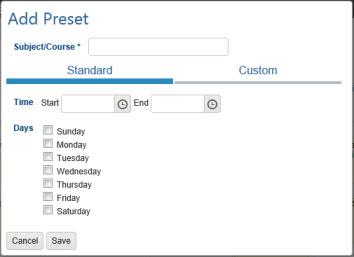
You can create entries for a Subject/Course on a single day, or on multiple days. You can set a specific time/block, or leave those fields blank to have the Subject/Course appear in the 'all day' section. Each Subject/Course may have just one entry per day of the week. There are two options for making an entry:
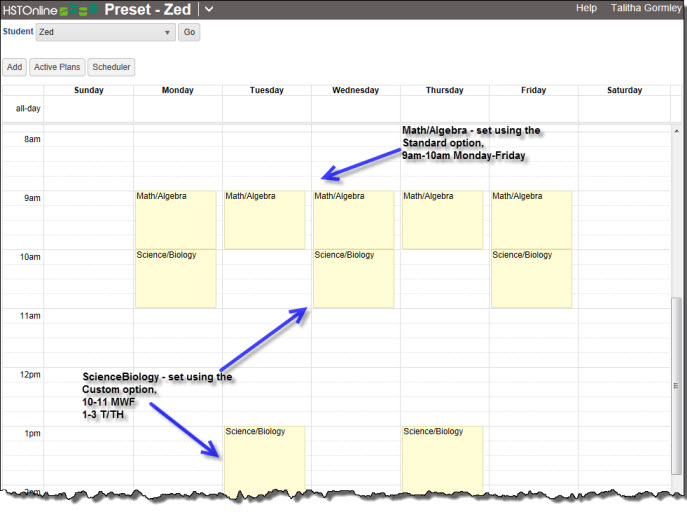
Adding entries to your Preset schedule will not affect any existing Assignments in your database. It will only change how Assignments are created in the future when using the Preset option.
|
|
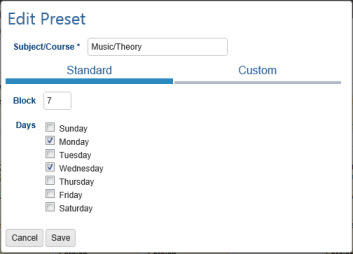
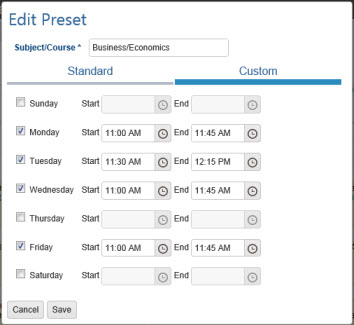
Use the Edit form to make changes to an entry, or remove a checkmark for one or more days to delete those entries from your Preset schedule.
Changing the time or block settings in your Preset schedule will not affect any existing Assignments in those time/block slots. It will only change how Assignments are created in the future when using the Preset option.
|
|
To delete one or more entries from your Preset schedule, use the edit instructions above to open the Edit form for a Subject/Course. Remove the checkmark for any day of the week where you want to remove the entry for that Subject/Course. Click or touch Save to keep your changes.
Deleting entries from your Preset schedule will not affect any existing Assignments in those time/block slots. It will only change how Assignments are created in the future when using the Preset option.
You can select the Preset option when creating Assignments:
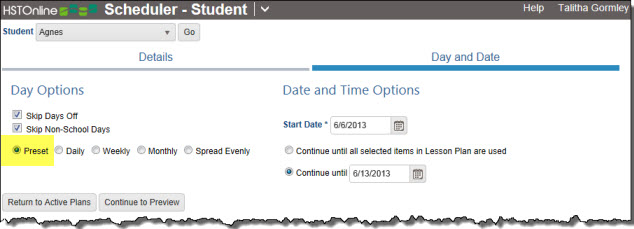
When you select the Preset option, Assignments will be created following the date and time/block settings you have created. If there is no matching entry for the Subject/Course being created, then HSTOnline will use the Daily option to create the Assignments. Please see the Day Options Help Page for more information.