Introduction
Each time you create multiple entries for Appointments, Assignments, Attendance, Chores, Days Off or Lesson Plan items, when Rescheduling Assignments and Chores or using the Scheduler feature, you will need to set the pattern of days you want HSTOnline to follow when creating or moving those items.
|
You can use the Preset option to create a pattern of days and times for HSTOnline to follow when:
You can use the Daily, Weekly or Monthly options to set the pattern of days you want HSTOnline to follow when:
The 'Spread Evenly' option is available when:
|
The Preset Option
Use this option to have the items appear according to the days and times you set up for the Student in their Lesson Plan and Presets area. When creating Assignments for more than one Student at a time, HSTOnline will follow the Preset entries you have created for each individual Student.
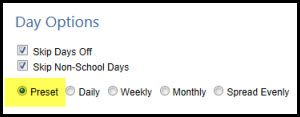
To determine the valid dates:
- HSTOnline will gather a list of all dates from your start date to ten years out to insure having enough dates for the items being created, or all the dates in the selected range.
- All Non-School Days and Days Off are removed based on your 'Skip' settings.
- Then the pattern you supplied in the Student's Preset grid is attributed to the valid dates remaining.
- If there is no matching entry for the Subject/Course in question, then HSTOnline will use the Daily setting, putting one item on each valid date in the date range.
For example:
- In Agnes' Presets, Music/Theory is scheduled on Mondays, Wednesdays, and Fridays from 1:00pm to 1:45pm
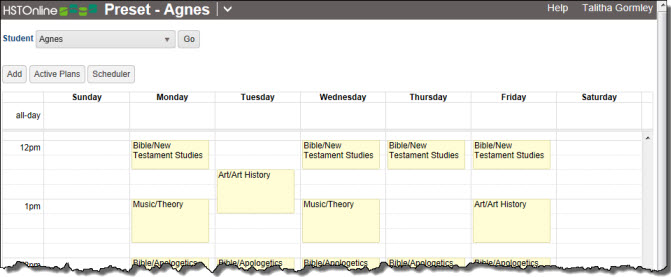
Agnes Presets Example - In Fred's Presets, Music/Theory is scheduled on Mondays, Tuesdays and Fridays from 12:30pm to 1:00pm
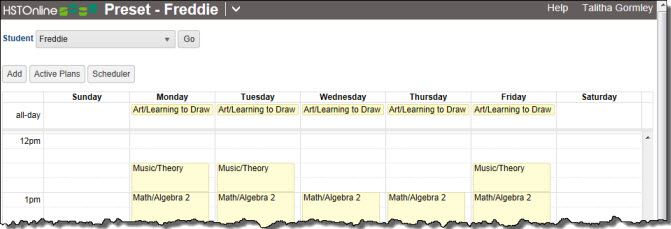
Freddie Presets Example - Submitting Assignments or Lesson Plan items using the Preset option generates the following results: Agnes' items appear on M/W/F from 1:00pm to 1:45pm and Freddie's items appear on M/T/F from 12:30pm
to 1:00pm, just as directed by the Preset options set for each Student. By choosing the Preset option, all the items for both Students can be created at the same time, instead of having to repeat the
process with different day of the week and time of day settings.
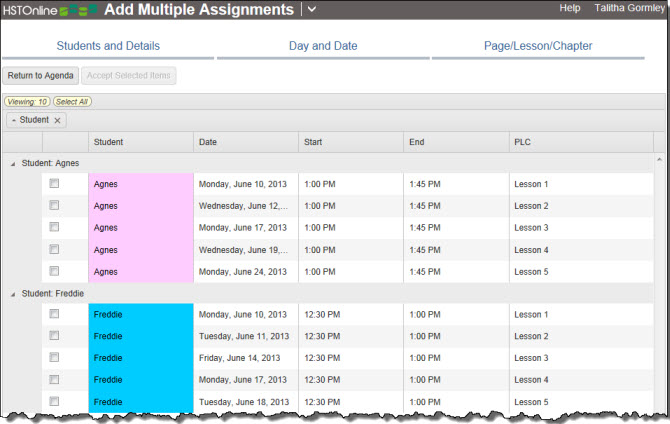
Preset Option Results
The Daily Option
Use this option to have the items appear every day at the interval you set. The default setting is 'Every 1 Day'. Set the number for 'Every _ Days': If you leave it at 1, the new items will be added to each valid date in the date range; if you change it to 2, the new items will be added to every other valid date in the date range, etc.
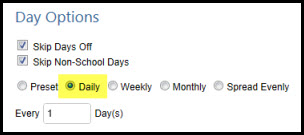
To determine valid dates:
- HSTOnline will gather a list of all dates from your start date to ten years out to insure having enough dates for the items being created, or all the dates in the selected range.
- All non-school days and Days Off are removed based on your 'Skip' settings.
- Then items are placed on each date according to your 'Every_Days' entry.
For example, given the options pictured below:
- Daily, Every 1 Day, Date range: 6/10/2013 - 6/14/2013
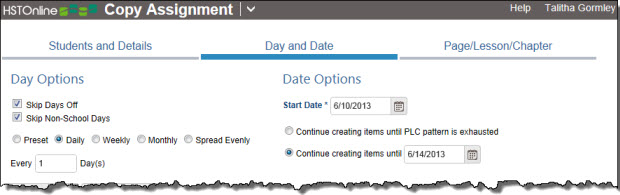
Daily Example - and presuming:
- there are 5 items to be created
- there are no days off in the potential date range
- Then you will get the following results - one item on each of 4 dates.
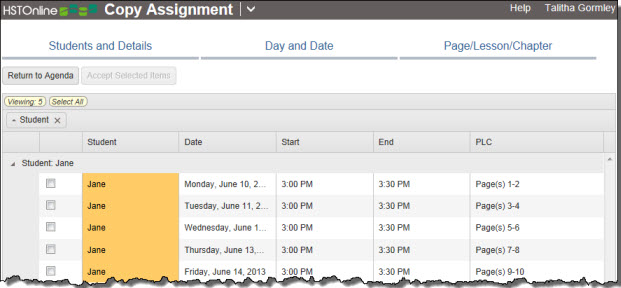
Daily Results
The Weekly Option
Use this option to have the items appear on a weekly basis on the day(s) you set. You can set a pattern to be used every week or enter a number of weeks to skip. The default setting is 'Every 1 Week' and all of your School Days are checked.
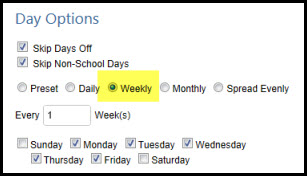
To determine the valid dates:
- HSTOnline will gather a list of all dates from your start date to ten years out to insure having enough dates for the items being created, or all the dates in the selected range.
- All non-school days and Days Off are removed based on your option settings.
- All dates not belonging to the days of the week selected are removed.
- Then the pattern you supplied for 'every __ week(s)' is attributed to the valid dates remaining.
For example, given the options pictured below:
- Weekly, every 1 week, Mondays and Thursdays; Date range 6/10/2013 - 6/14/2013
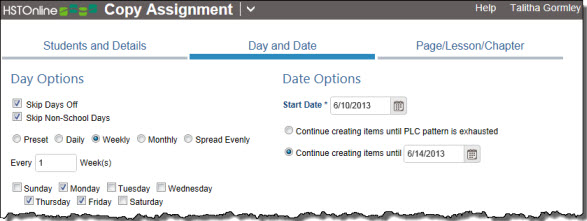
Weekly Example - and presuming:
- there are 5 items to be created
- there are no days off in the potential date range
- Then you will get the following results - items on Monday, Thursday and Friday only through the date range until all the items are assigned.
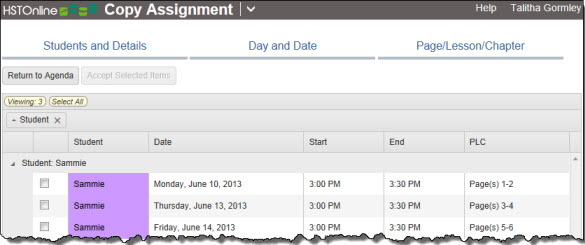
Weekly Results
The Monthly Option
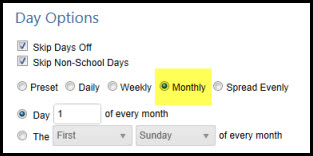
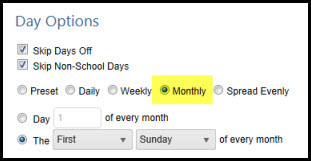
Use this option to have the items appear on the same date each month, or on the same day of the month each month (e.g. the 1st Monday of every month). The default setting is 'Day 1 of every Month'.
To determine the valid dates:
- HSTOnline will gather a list of all dates from your start date to ten years out to insure having enough dates for the items being created, or all the dates in the selected range.
- HSTOnline starts with the dates that match the month options selected within the date range provided.
- Each date is then evaluated to determine if it meets the school day and day off options you have selected.
Example 1: given the options pictured below:
- Monthly, the 4th of every month; Date range: 6/1/2013 - 7/31/2013
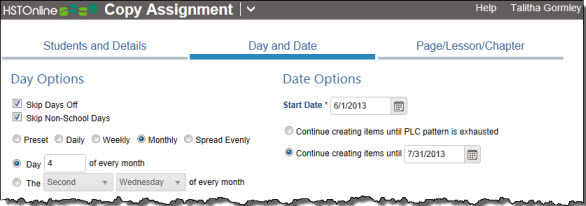
Monthly - same date in each month - and presuming:
- there are 5 items to be created
- there are no days off in the potential date range
- Then you will get the following results - two items: Tuesday June 4 and Thursday July 4.
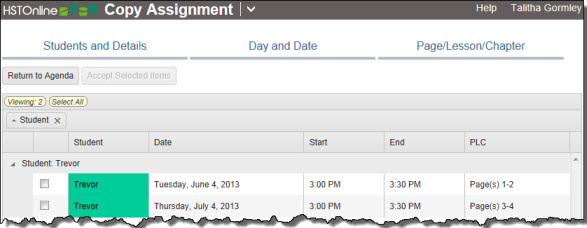
Monthly - same date in each month - Results
Example 2: given the options pictured below:
- Monthly, the second Wednesday of every month; Date range: 6/1/2013 - 7/31/2013
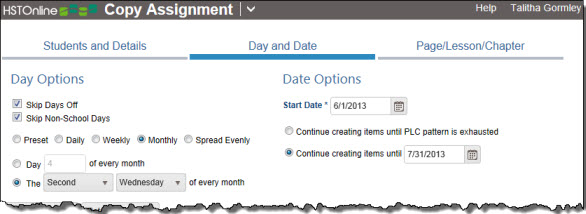
Monthly - same day of each month - and presuming:
- there are 5 items to be created
- there are no days off in the potential date range
- Then you will get the following results - two items: Wednesday June 12 and Wednesday July 10
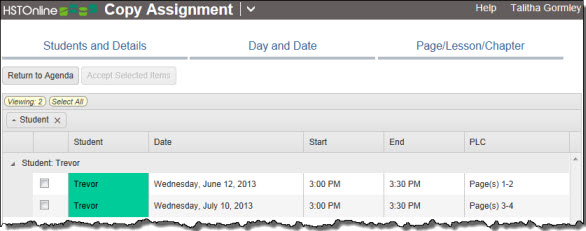
Monthly - same day of each month - Results
The Spread Evenly Option
HSTOnline will calculate the number of items to be created based on the Page/Lesson/Chapter copy options you have set and will spread those items evenly over the date range selected.
- If there are more items than dates provided in your date range, multiple Assignments will may be created on the same date in an equitable manner across the date range.
- For example: if 6 Assignments are to be created and the date range has three valid school days, then two Assignments will be placed on each date.
- If there are more dates than items needed to complete the Page/Lesson/Chapter pattern, then Assignments will be spread out evenly over those dates.
- For example: if 6 Assignments are to be created and the date range has 12 valid school days, then one Assignment will be placed on every other valid date.
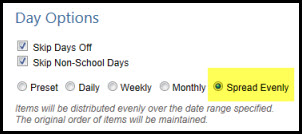
To determine the valid dates:
- HSTOnline starts with all the dates in the date range you provide.
- All non-school days and Days Off are removed based on your option settings.
- Items are then spread evenly over the dates remaining.
Example 1: given the options pictured below:
- Spread Evenly; Date range: 7/1/2013 - 7/3/2013
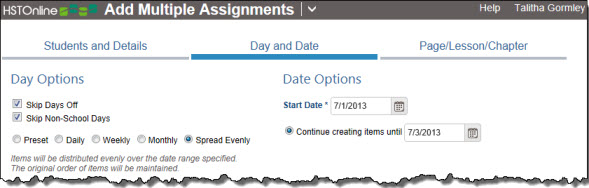
Spread Evenly - Date range: 7/1/2013 - 7/3/2013 - and presuming:
- there are 10 items to be created
- there are no days off in the potential date range
- Then you will get the following results - three items on July 1, four items on July 2, three items on July 3
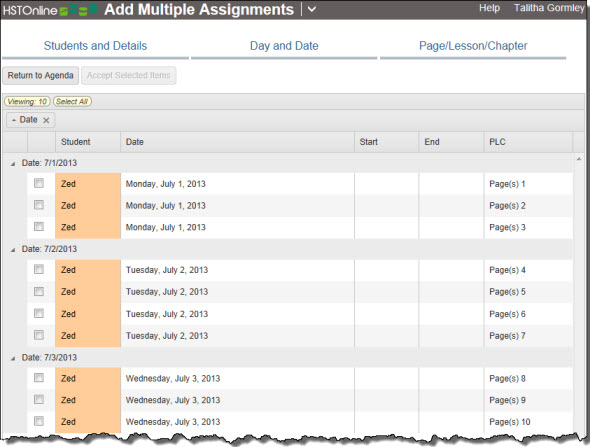
Spread Evenly - more items than dates
Example 2: given the options pictured below:
- Spread Evenly, Date range: 7/1/2013 - 8/16/2013
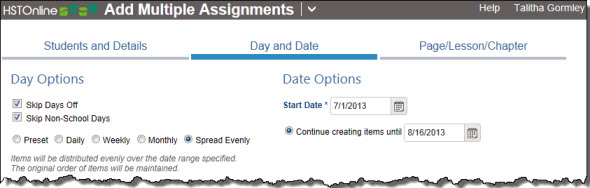
Spread Evenly - Date Range: 7/1/2013 - 8/16/2013 - and presuming:
- there are 10 items to be created
- there are no days off in the potential date range
- Then you will get the following results - ten items, spread evenly over the date range which means that there are gaps between items.
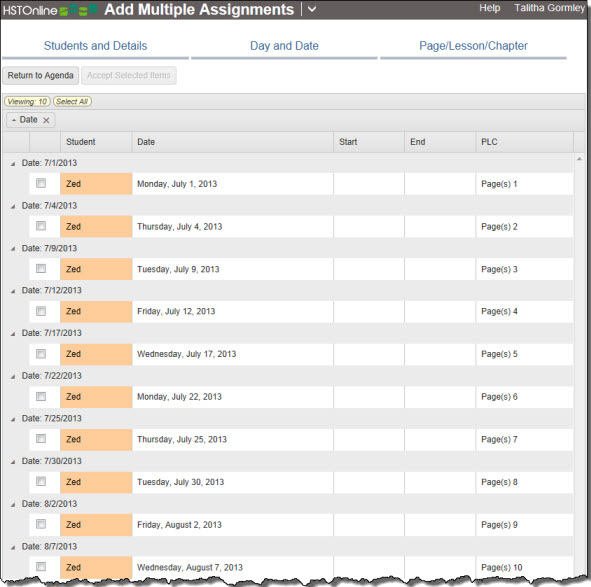
Spread Evenly - more dates than items