Introduction
You can add HTML formatted text to Directions, Notes, Progress Notes, Objectives, Instructions and Description fields that appear in Assignments, Lesson Plan items, Courses, Skills Progress, etc. Click on the field name or pencil icon for the appropriate Directions, Notes, Progress Notes, etc. field to open the HTML editor window. Type in the text you want, using the editing icons to format the text as desired. You can also use standard keyboard shortcuts to select, copy and paste text in these windows.
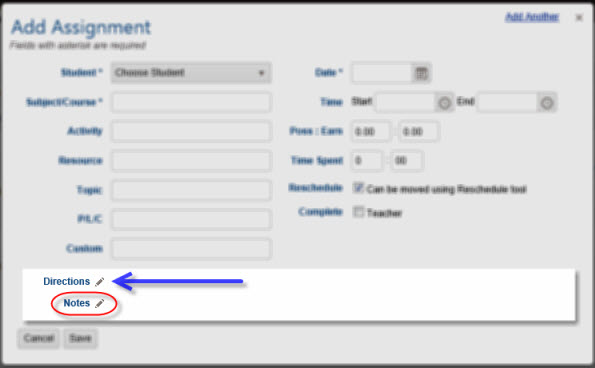
The text you enter will be displayed in the add/edit forms and in reports with all the formatting effects you have selected. In the (Preview) columns, the first 150 characters will be displayed in plain text.
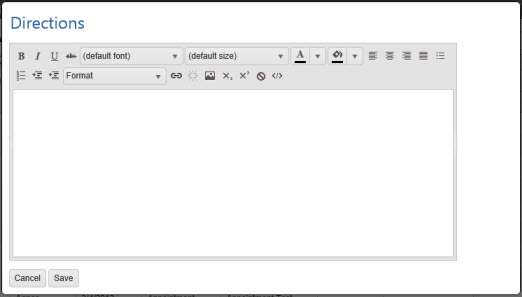
HTML Editing Icons

Use the icons on the Edit window to format the text to your preferences. Below is a brief description of each icon.
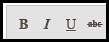
- Bold: Adds bold to selected text
- Italics: Adds italics to selected text
- Underline: Underline to selected text
- Strikethrough: Puts a strike line through selected text

- Font: Choose a font for the selected text
- Font size: Choose a font size for the selected text
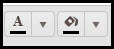
- Text Color: Choose a color for the selected text
- Background Color: Choose a background/highlight color for the selected text
- Align Text Left: Aligns selected text to the left margin
- Center Text: Centers selected text
- Align Text Right: Aligns selected text to the right margin
- Justify: Spreads selected text evenly between left and right margins

- Bullet List: Arranges selected text in a bulleted list
- Numbered List: Arranges selected text in a numbered list

- Indent: Indents selected text
- Outdent: Outdents selected text
- Format Style: Apply preset formatting to selected text - heading 1, heading 2, etc.
- Insert Hyperlink: Insert a hyperlink behind selected text. Enter the web address, the text to appear in the directions field, a tooltip (words that appear when you mouse over the linked text) and check a box to have the link open in a new window
- Remove Link: Removes an existing hyperlink from selected text
- Insert Image: Insert an image with a valid URL
- Subscript: The selected text will appear subscript to the adjacent text
- Superscript: The selected text will appear superscript to the adjacent text
- Remove HTML code: Remove all HTML coding from all text in the window and returns it to plain text
- View HTML: Allows you to view HTML codes in use in the text