Related Assignment Topics
- Adding Assignments
- Copying Assignments
- Deleting Assignments
- Editing Assignments
- Mark as Complete
- Past Due Assignments
- Rescheduling
Help & User Guide
Assignments are the tasks that you give your student to complete: math lessons, spelling tests, writing assignments, science experiments, field trips, etc. You can enter Assignments in advance or add details after the fact. You can enter each and every task attempted and completed by your student, or just a representative assignment for a week, month or term worth of work.
All of your hours, grading and skills reports will be generated from the information you enter as Assignments.
The only required fields for any Assignment are Student, Subject/Course, and Date. You can add additional information as needed. By default, the following fields are disabled: Assignment Location, Complete by Student, Custom, Links, Notes, Order, Sessions, Skills, Supplies, and Topic. You can enable any or all of these fields, or disable additional fields, in Program Options: Optional Fields.
Assignments can be created directly in the Agenda or by submitting Lesson Plan items using the Scheduler tool.
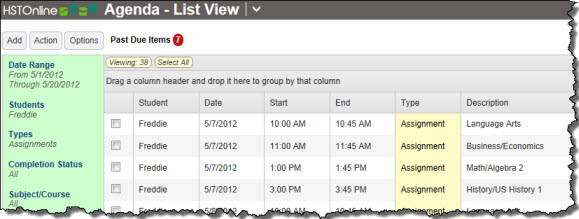
HSTOnline will help you keep track of Assignments which are Past Due - those which have been assigned to a date prior to today and have not yet been marked as completed. Students can view the items which they have not marked as Student-Complete; Teachers/Administrators can view items which they have not marked as Teacher-Complete.
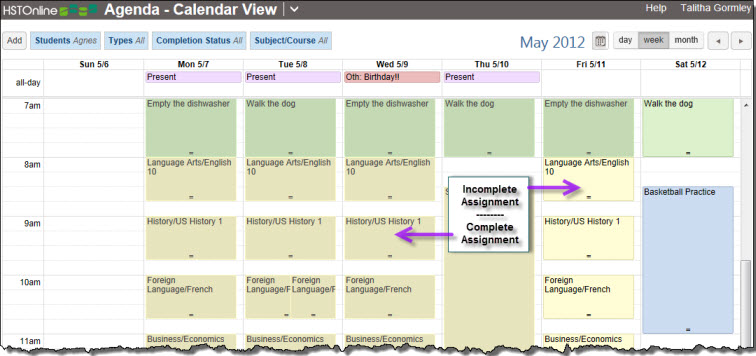
Assignments can be Rescheduled forward or backward in time as needed.
Here is a list of actions that can be performed with Assignments, with their Help Page links: |
|
|
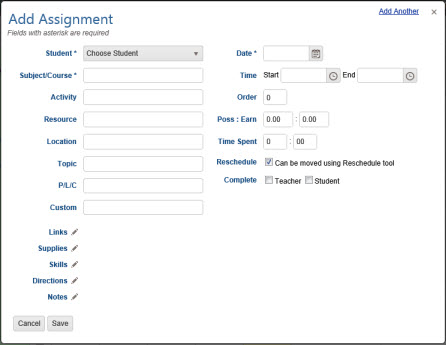
Below is a list of all the possible fields for any Assignment you create. Again, the only required fields are Student, Subject/Course, and Date. You may enter any additional details you want or need for your homeschooling records. You can enter these details on Assignment creation, or you can go back and add additional information after the fact using the Edit features.
| Field Name | Notes | Status |
|---|---|---|
| Student | Each Assignment must be attached to a specific Student. You may choose any active Student in your list. Use the Add Assignment - Multiple feature to create the same Assignment for more than one Student at a time. | Required |
| Subject/Course | Select a Subject or Subject and Course from the list you have created. The Subject/Course field is a Smart-Entry Field, allowing you to create a new Subject or Course on the fly while creating a new Assignment. | Required |
| Activity | A short description of the type of work to be done in the assignment e.g. Lesson, Test, Reading, Worksheet, etc. Select an Activity from the list you have created. The Activity field is a Smart-Entry Field, allowing you to create a new Activity on the fly while creating a new Assignment. | Optional - Enabled |
| Resource | Select a Resource from the list. Your options will be limited to those Resources which are tied to the Subject or Subject/Course for this Assignment and those tied to the All Subjects option. The Resource field is a Smart-Entry Field, allowing you to create a new Resource on the fly while creating a new Assignment. | Optional - Enabled |
| (Assignment) Location | Allows you to track the location where teaching/learning took place. This is especially helpful for homeschoolers in areas where one is required to document the number of hours of schooling that take place inside vs. outside the home. These details can be documented in the Home/Away Report. The Location field is a Smart-Entry Field, allowing you to create a new Location on the fly while creating a new LP item. | Optional - Disabled |
| Topic | An optional field of up to 150 characters where you can enter a short description of the material covered in the lesson. Topics can be used to create a Scope & Sequence Report. | Optional - Disabled |
| P/L/C (Page/Lesson/ Chapter) | A field of up to 150 characters to contain the actual Page, Lesson, Chapter or other identifying information for the Student on where the work is to be found in the textbook. The copy functions of HSTOnline allow you to create multiple Assignments where the PLC field is automatically incremented (Lesson 1, Lesson 2, Lesson 3, etc.) based on parameters you set. | Optional - Enabled |
| Custom | An optional field where you can enter up to 150 characters with any custom text you want to further classify the Assignment for your own use. | Optional - Disabled |
| Date | The date on which the work is to be done. Dates can be entered manually using the mm/dd/yyyy format or by clicking or touching the Calendar icon to select a date. | Required |
| Time Start/End | In Program Options, you can choose to schedule items by specific start/end times or blocks. If you have chosen start/end times - which is the default selection - you can choose to set specific starting and ending times for the Assignment, or you can leave these fields blank. | Optional - Enabled |
| Block | In Program Options, you can choose to schedule items by specific start/end times or blocks. If you have chosen Blocks, you will see the Block field instead of the Time Start/End fields. You may leave this field blank or choose a block fro 1 to 20. | Optional - Disabled |
| Order | When you have multiple items set for the same start/end times or the same block, you can use the Order field to determine which items should be done first, second, third, etc. | Optional - Disabled |
| Poss: Earn | When grading an item, Points Possible go in the first field, Points Earned go in the second field. When an item is marked as Complete - Teacher, a percentage grade will be calculated for the Assignment. | Optional - Enabled |
| Time Spent | An optional method for keeping track of how much time is spent on each subject/course. In Program Options you can choose to have HSTOnline automatically calculate the Time Spent of an Assignment based on the Start/End times you have entered. Time Spent can also be used to track the amount of time spent in school each day along with your Attendance records. | Optional - Enabled |
| Sessions | An optional method for keeping track of how often your student studies a subject/course. Choose to use Sessions instead of Time Spent in Program Options or you can choose to disable both fields. Only one or the other can be active at any one time. Sessions can also be used to track the number of Sessions per school day along with your Attendance records. | Optional - Disabled |
| Reschedule | Check the box to allow this Assignment to be moved as part of the Reschedule process. Uncheck the box to insure that this item is never moved from its original date. The checkmark to enable Rescheduling is applied by default. | Always visible |
| Complete: Teacher | An Assignment must be marked as Complete - Teacher to:
|
Always Visible |
| Complete: Student | You can choose to enable this field in Program Options so that your Student can indicate when she has finished working on the Assignment. | Optional - Disabled |
| Links | Use this field to enter URLs of websites that are related to the Assignment you are creating. | Optional - Disabled |
| Supplies | You may enter a list of Supplies required to complete an assignment. When entering Supplies, you can enter a name for the supply item as well as a quantity needed, and print a Supplies Report. | Optional - Disabled |
| Skills | You can attach one or more Skills to any Assignment to track your Student's progress in that area. | Optional - Disabled |
| Directions | Enter any directions you want the Student to have when completing the Assignment. | Optional - Enabled |
| Notes | The Notes section is intended as a place for the Teacher to enter notes needed for the Assignment. Notes will not appear on the Assignment window when logged in under a Student User Account. Notes can be included in the Daily Task List if desired. | Optional - Disabled |
Use HSTOnline in the way that works best for you and your homeschool. You can plan work out in advance, you can document every single assignment your student completes, or you can choose to enter work after the fact, or only enter representative assignments of her work throughout the year. To generate an entry in a Report Card or Transcript, you only need to enter a single Assignment per Subject/Course per Term that has been graded and marked as completed.
In fact, you can simply create placeholder assignments for your Student for the entire year for each subject area and you or your Student can fill in details of what was actually done on that day as you go along. To do this, use the Add: Assignment - Multiple option from the Agenda - Calendar View or Agenda - List View to create your items. Set your Day Off entries first, so you can skip over those days. Then, set up the skeleton assignments for each day of school. See Tips for Unschoolers for step by step instructions.
Grading is optional in HSTOnline. If you do not wish to use the grading features, you can disable this feature in the Program Options menu. When Grading is enabled, you can grade every Assignment or selected Assignments. To generate an entry on a Report Card or Transcript you need to create a minimum of one completed, graded Assignment for each Subject or Subject/Course for each term. Directions for creating minimal entries for these reports can be found in the Report Card or Transcript Help Pages.
Grades can be reviewed and edited in the Student - Grading Overview page and printed in a Report Card and/or Transcript.
HSTOnline allows you to choose how grades are to be calculated for your students, using either the traditional Averages method, or by dividing the total points earned by the total points possible. You must choose one method for all students. You may change your selection at any time. Make your selection in the Program Options: Grading menu. The options are outlined below with examples demonstrating how the different options may affect your student's overall grades. The Student - Grading Overview will show exactly how each Term grade was calculated using the grading method you selected.
In addition to selecting the calculation method, you can also choose how percentage grades will be rounded: to a whole number (0); to one decimal place (0.0); or to two decimal places (0.00).
You can create a printed list of Assignments for any date range using the Daily Task List report. The report can include any combination of Appointments, Assignments and/or Chores.
You can export a list of Assignments - and other entries in the Agenda - List View for any date range to a .CSV file using the Option: Export menu.