Introduction to Supplies
You may enter a list of Supplies required to complete an assignment. This field is optional. When entering Supplies, you can enter a name for the supply item as well as a quantity needed. You can copy the Supplies from an existing Assignment to other Assignments or from an existing Lesson Plan item to other Lesson Plan items using the Multi-Edit feature.
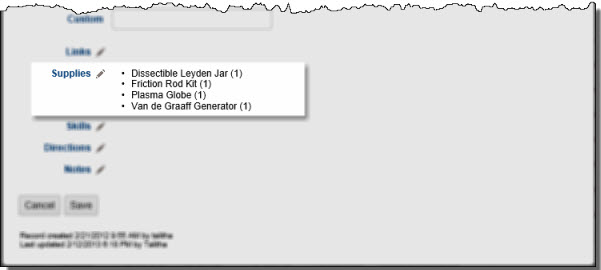
In an Assignment or Lesson Plan Add/Edit window, each supply item and quantity will be listed in the Supplies field.
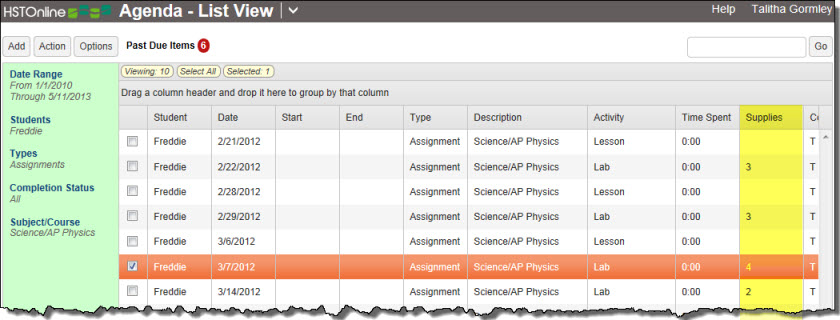
In the Agenda - List View and Lesson Plan grids, the Supplies column will show the number of different supplies on the list.
Enabling the Supplies Field
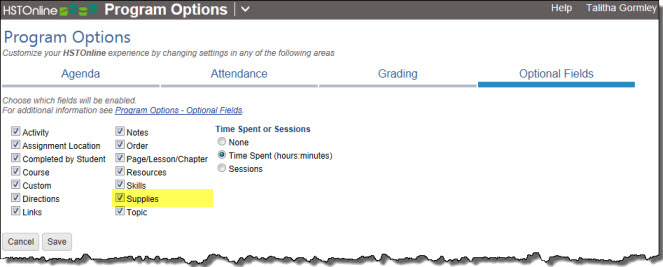
The Supplies field is optional and can be enabled and disabled using the Customize hyperlink in the HSTOnline menu bar.
Disabling this field will:
- Remove the Supplies field from the Assignment and Lesson Plan add/edit windows
- Remove the Supplies column from the Agenda - List View and Lesson Plan pages
- Disable the Supplies Report
- On the HSTOnline menu, click or touch Program Options.
- On the Program Options page, click or touch the Optional Fields tab.
- Click or touch the box next to Supplies to add a checkmark to enable the field; or to remove a checkmark to disable the field.
- Click or touch Save to keep your changes.
- Click or touch 'Ok' on the 'Changes Saved' window.
Displaying the Supplies Column
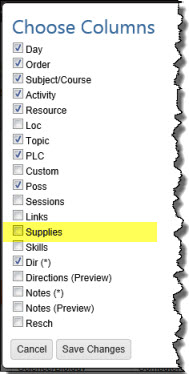
When the Supplies field is enabled, you can choose whether to display or hide the column in the Agenda - List View and/or Lesson Plan pages.
In the Agenda - List View or Lesson Plan page:
- Click or touch the Options button.
- Click or touch 'Choose Columns' to open the Choose Columns window.
- Click or touch the checkbox next to Supplies to add a checkmark to display the column; or to remove a checkmark to hide the column.
- Choose to display or hide any other columns as needed.
- Click or touch:
- Cancel to close the Choose Columns window without making any changes to your column display.
- Save Changes to reset the displayed columns according to your selections.
Adding Supplies to a Lesson Plan item or Assignment
- When Supplies are added to a Lesson Plan item, they will also be added to any Assignments created from that Lesson Plan item.
- When Supplies are added to an Assignment, they will also be added to any additional Assignments created with the Copy or Duplicate features using the original Assignment as a starting point.
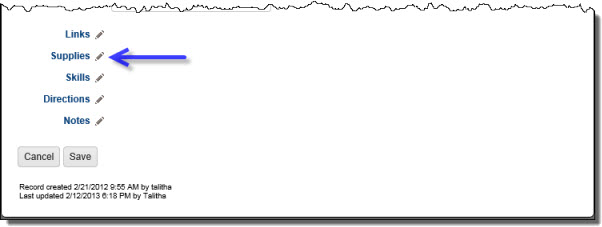
- In the Assignment or Lesson Plan add or edit windows, click or touch the word Supplies, or the pencil icon to the right of it, to open the Supplies window.
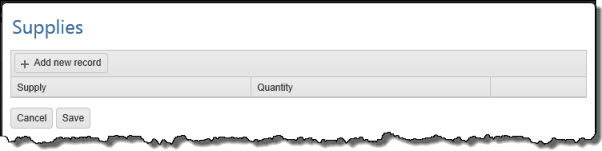
Supplies Window - Click or touch the 'Add new record' button.
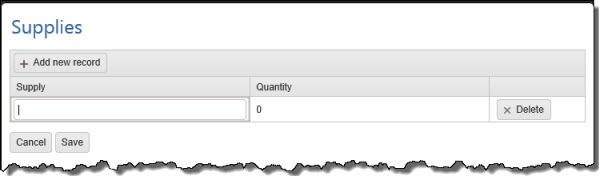
Add New Record - Enter the name of the item required in the Supply field, up to 150 characters.
- Enter a Quantity.
- This is an optional field
- This field will only accept whole numbers.
- Repeat steps 2-4 until all your Supplies for this item have been entered.
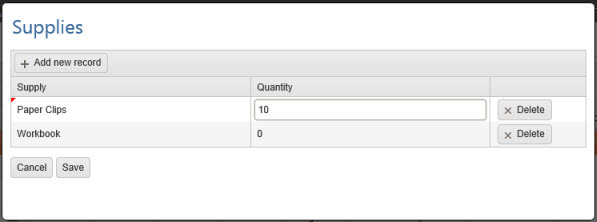
Supplies Entered - To change an entry you have already made:
- Click or touch into the Supply or Quantity field for the item to be changed and make whatever changes are required.
- To remove an entry you have already made:
- Click or touch the Delete button to the right of the line item.
- To change an entry you have already made:
- Click or touch:
- Cancel to return to the add/edit window without changing the original Supplies field on that form.
- Save to save the entries you have made and return to the add/edit form you were working on.
- If you have added one or more Supplies, they will be listed on the add/edit form in alphabetical order by supply name. Items with a quantity greater than zero will show the quantity in parentheses following the supply name.
- In Agenda - List View or Lesson Plan pages, the Supplies column will show the number of distinct supply items attached to the Assignment or Lesson Plan item.
Editing Supplies for a Lesson Plan item or Assignment
Editing Supplies for a Single Assignment or Lesson Plan item
- Open the edit window for the Assignment or Lesson Plan item you want to work with.
- Click or touch the word Supplies, or the pencil icon to the right of it, to open the Supplies window.
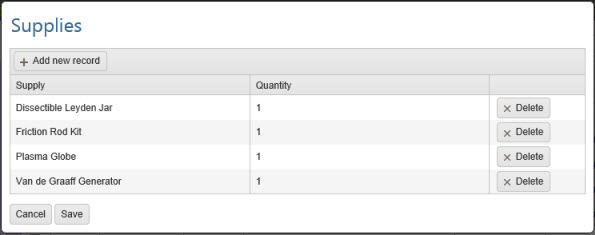
Edit Supplies - To add one or more new Supplies, click or touch the 'Add new record' button and enter the new item and quantity.
- To change an existing Supply, click or touch into the Supply or Quantity field for the item and make whatever changes are required.
- To delete an existing Supply, click the Delete button for that row.
- Click or touch:
- Cancel to return to the add/edit window without changing the Supplies.
- Save to save the changes you have made and return to the add/edit form you were working on.
Editing Supplies for Multiple Lesson Plan items or Assignments
Use this option to edit the Supplies for multiple Assignments or multiple Lesson Plan items at one time. All selected items will have the same list of Supplies at the end of the edit process.
- Open the multi-edit window for the Assignment or Lesson Plan item you want to work with.
- In the multi-edit window, click or touch the box to the left of Supplies to enable that field. The Supplies tied to the first selected item will be displayed.
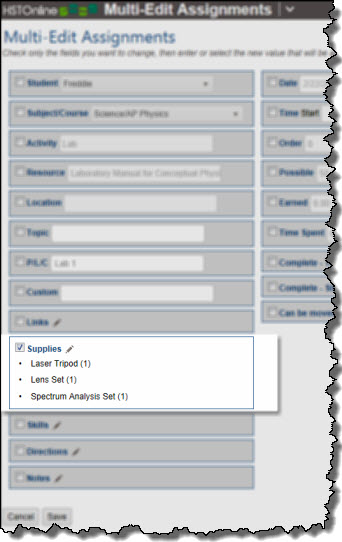
Multi-Edit Supplies - Click or touch the pencil icon to open the Supplies window.
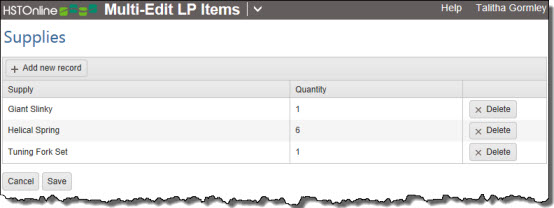
- To add one or more new Supplies, click or touch the 'Add new record' button and enter the new item and quantity.
- To change an existing Supply, click or touch into the Supply or Quantity field for the item and make whatever changes are required.
- To delete an existing Supply, click the Delete button for that row.
- Click or touch:
- Cancel to return to the multi-edit window without changing the Supplies.
- Save to save the entries you have made and return to the multi-edit form you were working on.
- Make any other changes needed in the multi-edit Assignments or Lesson Plan items window.
- On the multi-edit window, click or touch:
- Cancel to abandon all changes.
- Save to
- Existing Supplies of the selected Lesson Plan items or Assignments will be replaced by the new list of Supplies you created.
Deleting Supplies
- Open the edit or multi-edit window for the Assignment(s) or Lesson Plan item(s) you want to work with.
- Open the Supplies field:
- In an edit window, click or touch the word Supplies, or the pencil icon to the right of it, to open the Supplies window.
- In a multi-edit window, click or touch the box to the left of Supplies to enable that field. The Supplies tied to the first selected item will be displayed. Click or touch the the pencil icon to open the Supplies window.
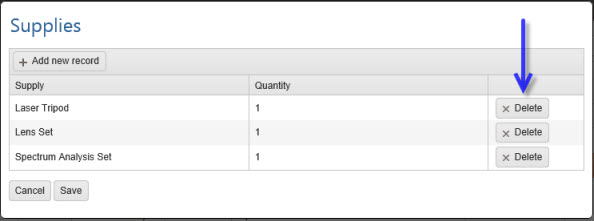
Delete Supplies - Click the Delete button next to each Supply you want to remove.
- Click or touch:
- Cancel to return to the edit or multi-edit window without changing the Supplies.
- Save to save the changes you have made and return to the edit or multi-edit form you were working on.