Introduction
HSTOnline provides two optional fields for keeping track of how much time your student is spending in each Subject/Course area:
|
The Sessions field is offered as an alternative for those who want to keep track of the frequency of Assignments in each Subject/Course without keeping track of actual hours and minutes. What represents a Session is entirely up to you. From some, a student has to spend an hour or more working in a particular Subject/Course area in a day in order to get credit for 1 session, while less than an hour would be awarded 0.5 Sessions. For others, a Sessions is counted each time a Subject/Course is worked on in any given day, regardless of how much actual time is spent on the work.
In Program Options, choose to use Time Spent or Sessions or neither field. The Sessions field is enabled by default.
In Attendance, you can use the Sessions data to keep track of how many sessions you are schooling per day.
When you set up a Course, you can choose to have the credit hours awarded based on the student meeting a minimum number of Sessions, or you can set it up to award partial credit depending on the number of Sessions completed by the end of the school year.
In the Home/Away Report, Sessions will show how many periods of schooling occurred in each location, broken down by Subject/Course. And the Time Spent/Sessions Report will show the number of periods spent in each Subject/Course for a selected Student and Date Range.
Enabling the Sessions Field
The Sessions field is optional and can be enabled and disabled via Program Options in the HSTOnline menu. By default, the Sessions field is disabled.
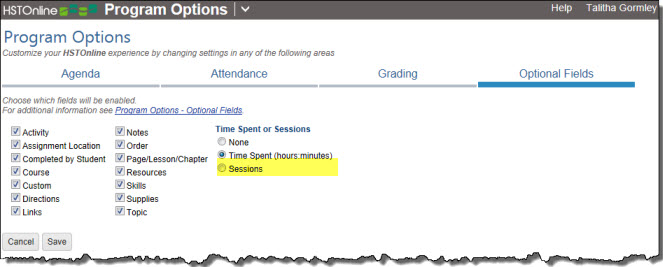
Disabling this field will:
- Remove the Sessions field from the Assignment and Lesson Plan add/edit windows
- Remove the Sessions column from the Agenda - List View and Lesson Plan pages
- Remove Sessions as an option for setting limits on the awarding Credit Hours
- Remove Sessions from optional display in Attendance entries
- On the HSTOnline menu, click or touch Program Options.
- On the Program Options page, click or touch the Optional Fields tab.
- Click or touch the radio button for Sessions to enable the field; click a different option (None or Time Spent) to disable the field.
- Click the Save button to keep your changes.
- Click or touch 'Ok' on the 'Changes Saved' window.
Displaying the Sessions Column
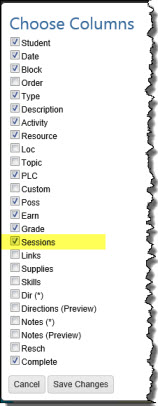
When the Sessions field is enabled, you can choose whether to display or hide the column in the Agenda - List View and/or Lesson Plan pages.
In the Agenda - List View or Lesson Plan page:
- Click or touch the Options button.
- Click or touch 'Choose Columns' to open the Choose Columns window.
- Click or touch the checkbox next to Sessions to add a checkmark to display the column; or to remove a checkmark to hide the column.
- Choose to display or hide any other columns as needed.
- Click or touch:
- Cancel to close the Choose Columns window without making any changes to your column display.
- Save Changes to reset the displayed columns according to your selections.
Entering Sessions
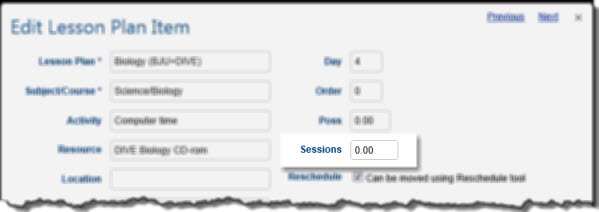
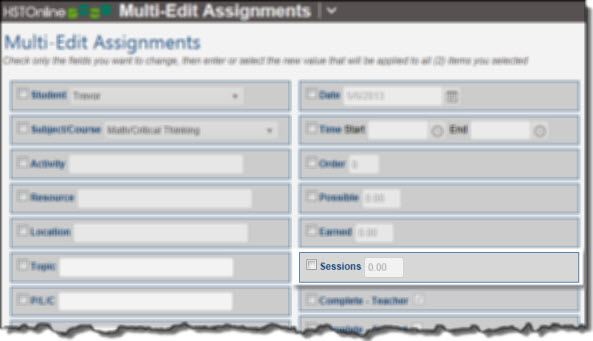
Sessions are entered as a numerical value up to two decimal places (0.00) and can be added to Assignments and Lesson Plan items. You can enter your Sessions for each item individually, or use the multi-edit feature to enter the same Sessions for two or more items at the same time. Please see the associated Help Pages for step by step instructions.
Attendance and Sessions
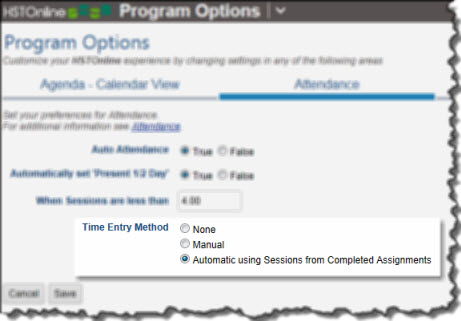
If you choose to keep Attendance records, you can also have HSTOnline display the total Sessions for all completed Assignments on that date next to the Present or Present 1/2 Day notation. This option is set in the Time Entry section of the Attendance Options. HSTOnline can perform this task whether you are entering Attendance manually or using the Auto-Attendance feature. If you are manually creating Attendance records, the Sessions value will be entered when you save the new Attendance entry. Sessions will be displayed in the 0.00 format in parentheses following the Present or Present 1/2 Day notation.
To enable Sessions values with your Attendance records:
- The Sessions field must be enabled.
- On the HSTOnline menu, click or touch Program Options.
- On the Program Options page, click or touch the Attendance tab.
- For Time Entry Method, click or touch the radio button for 'Automatic using Sessions from Completed Assignments'.
- Click the Save button.
- Click or touch 'Ok' on the 'Changes Saved' window.