The Login Page
This is the page you will see each time you land on the Online.HomeschoolTracker.com website.
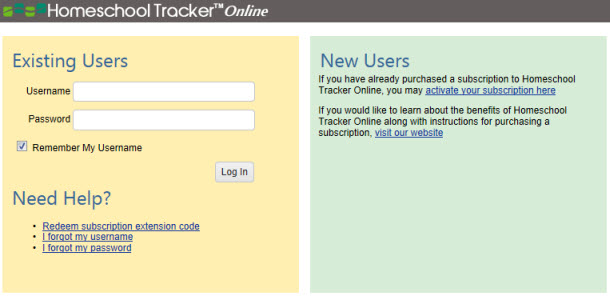
Existing Users: Use this area to login to the program. |
|
Need Help: Use the links here to: |
|
New Users: Use the links here to: |
|
The HSTOnline Title Bar
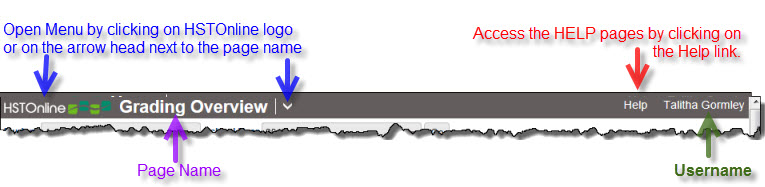
The HSTOnline Title Bar appears at the top of every page of the program.

|
The HSTOnline Menu
When you login to HSTOnline, you will see the full menu of options available based on your User Account. Once you are working in the program, you can access the menu at any time by clicking on the HSTOnline logo in the title bar, or by clicking on the arrow to the right of the page name. To move to another area of the program, click on a link in the menu. To stay on the page you are on and hide the menu, click the logo or arrow again.
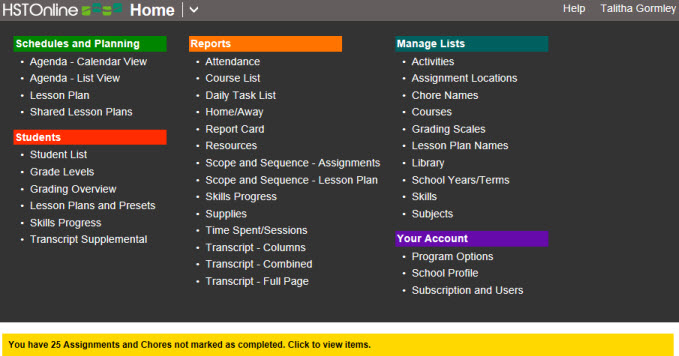
The options that appear in the menu will depend upon the Program Options selected and the user who is signed in. The 'Your Account' section only appears when signed in under the Administrator account; the 'Manage Lists' section only appears when signed in under a Teacher or Administrator account. See below for a brief description of each area.
Administrator Login
In the image below (Fig. 1), the full menu is displayed for the Administrator login, in this case Talitha Gormley. At the bottom of the menu, the yellow strip notes that there are currently 28 Assignments and Chores which have not yet been marked as Teacher Complete. You can click the link to go to the Past Due listing.
Teacher Login
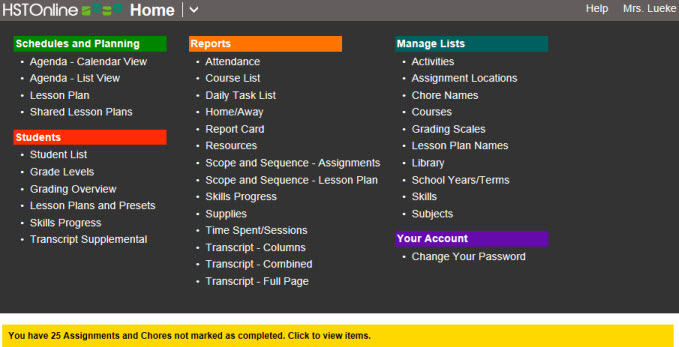
In Fig. 2, under the Teacher login of Mrs. Lueke, most of the same information is available. However, under the 'Your Account' section, the only option is 'Change Your Password' which allows the Teacher to adjust her own password as needed. The Past Due list for Administrators and Teachers is always the same as each of these types of accounts can see Assignments and Chores which are past due for all Students. Past Due items are any Chore or Assignment which is dated prior to today's date, which do not yet have a check in the Complete: Teacher box. The Administrator retains this ability as well for all Teacher User Accounts.
Student Login
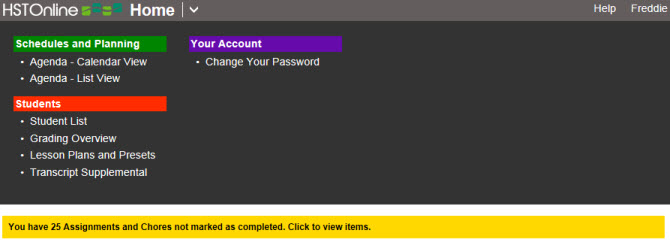
In Fig. 3, the Student Freddie is logged in. Freddie has no additional permissions allowed and therefore is in a read-only state. He can view his Agenda in Calendar or List View, he can also view his Attendance records under List, his grading progress in the Grading Overview, his active Lesson Plans and any Presets, and supplemental information added for his Transcript. However, he has no ability to edit any of that information, just view it. He can, of course, mark any of his own Assignments or Chores as Student Complete by checking that box, if the Administrator has enabled the Complete by Student field. And you will note that the Past Due message on Freddie's login only notes 4 Assignments and Chores as Past Due as only his own items will be visible to him. These will only be those items which are not yet marked as Teacher or Student complete, are assigned to Freddie, and have a date prior to today's date. All Students also have the ability to change their own password. The Administrator retains this ability as well for all Student User Accounts.
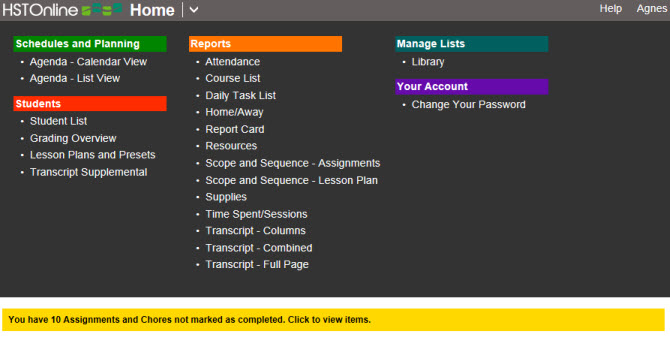
In Fig. 4, the Student Agnes is logged in. Agnes has been granted full Student access, so she is able to view everything that Freddie can see for her own records. In addition, she can create reports and view, add and edit Library items. Not evident from this screen shot is the fact that Agnes can add/edit Assignments, Appointments and Chores. She can also view her Past Due items, and again, you'll note that the Past Due notification shows 5 Assignments and Chores as Past Due. These will be only those items that are not yet marked as Teacher or Student Complete, are assigned to Agnes, and have a date prior to today's date.
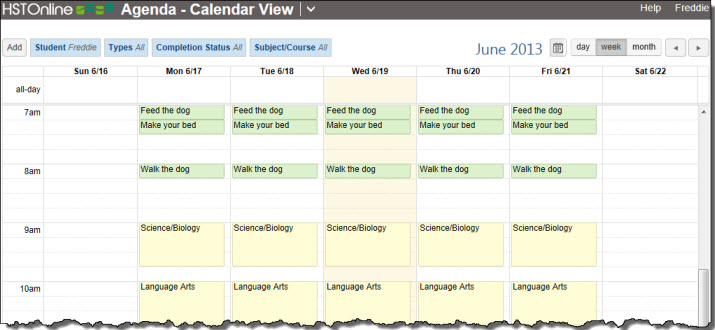
When a Student user clicks or touches the Agenda - Calendar View link, they will be taken to a view that includes the current date.
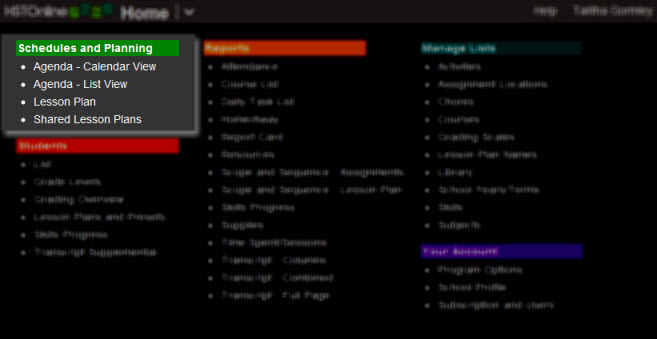
Schedules and Planning:
The Agenda - Calendar View and Agenda - List View options are available under any User Account login. The Lesson Plan and Shared Lesson Plans options are only available when logged in under a Teacher or Administrator User Account.
Agenda - Calendar View
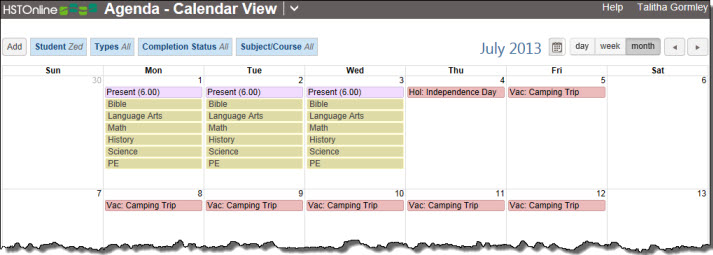
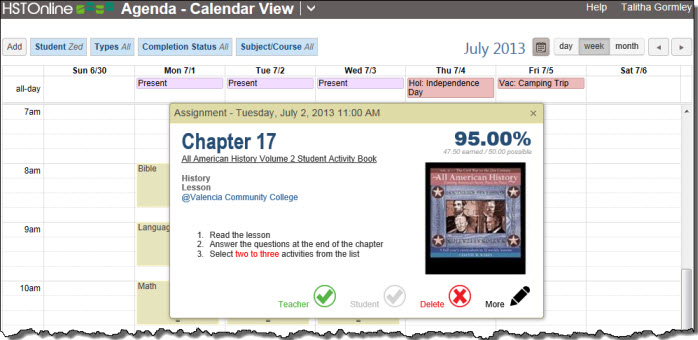
View the Assignments, Chores, Appointments, Attendance and Days Off entries for any one Student in a day, week or month Calendar format. These items can be edited or marked as completed one at a time. Items are color-coded by type for easier identification.
Agenda - List View
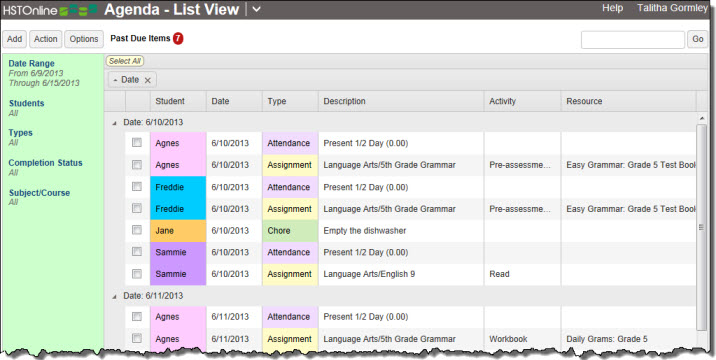
View the Assignments, Chores, Appointments, Attendance and Days Off entries for any one or more Students at a time for any date range you choose in a List format. The List View can be grouped and sorted by any columns to customize the view. You can choose which columns to display and set your preferred column widths. Items can be displayed with the same color-coded background as in the Agenda - Calendar View for easier identification. You can choose to set a background color for each Student.
In this view you can:
- Add, Edit, Multi-Edit or Delete Appointments, Assignments, Attendance, Chores and/or Day Off entries.
- Copy one or more Assignments into a new or existing Lesson Plan.
- Duplicate existing Appointments, Assignments, Chores, and/or Days Off entries for the same or different students.
- Export the data you are currently viewing to a CSV file to use as you see fit.
- Mark selected Assignments and Chores as 'Completed'.
- Reschedule selected Assignments and Chores backward or forward in time.
Lesson Plan
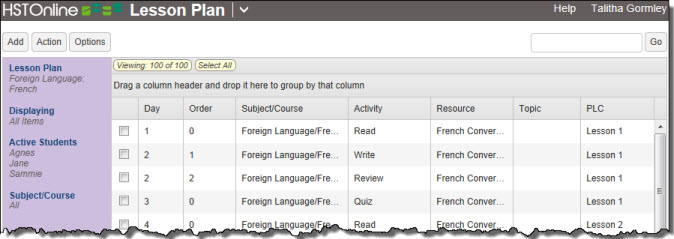
The Lesson Plan feature allows you to create plans of the work you will be assigning to your students. Creating a lesson plan can drastically decrease the amount of data entry you need to do as those Lesson Plans can be reused for multiple students and/or multiple school years.
In this area you can:
- View any of your Lesson Plans and Add, Edit, Multi-Edit or Delete items within the Lesson Plan.
- Copy one or more Lesson Plan items to a new or existing Lesson Plan
- Export the data you are currently viewing to a CSV file to use as you see fit.
- Use the Scheduler to create Assignments for one or more Students from the Lesson Plan you are viewing.
- Share the Lesson Plan with other HSTOnline users
Shared Lesson Plans
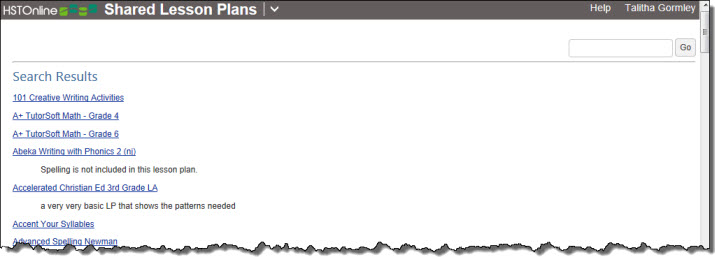
Lesson Plans can be shared with other HSTOnline users. You and your homeschooling friends can divvy up the creation of your lesson plans and then share the results with each other, reducing everyone's data entry duties. Browse a list of Lesson Plans shared by other HSTOnline users. You can preview a Lesson Plan and make minor adjustments before importing it into your database.
Students:
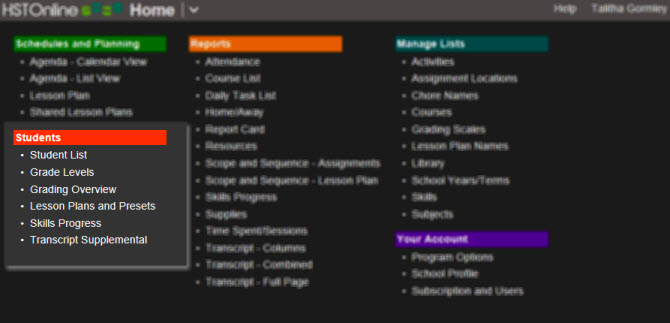
In this area, you will add your Students to the database. You can also review details for individual students regarding Attendance, Grade Levels, Grading, active Lesson Plans, Skills Progress, and add supplemental information for Transcripts.
The areas listed here for Administrator and Teacher logins will depend on the Program Options selected:
- Grading Overview only appears if Grading is enabled
- Skills Progress only appears if the Skills field is enabled.
Student User Accounts will never have access to Grade Level or Skills Progress areas.
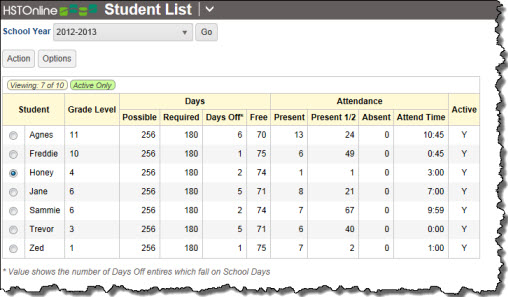
Student List
The list of Students enrolled in your homeschool. When a Student User is logged in, only their name will be visible on the list. Select a school year to see the Attendance and Days details for each Student for the selected year.
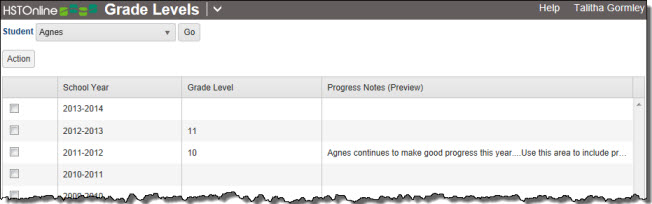
Grade Level
In the Grade Level area, you can enter the grade your student will be in for each School Year you create. You can also use the Progress Notes field in this area to enter details for your Student which can be included on a Report Card.
Grading Overview
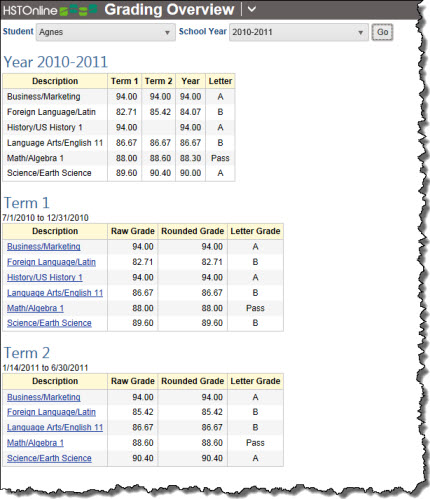
In the Grading Overview, review grades for a selected Student and School Year. You can view the Term and Year grades for each Subject/Course within the selected School Year. You can also choose a Subject/Course in the Term boxes to see the actual Assignments for that subject/course and see the Grading Calculation details.
While in the detail view, you can Add, Edit, Multi-Edit or Delete Assignments for the Subject/Course you are viewing. This area is especially helpful when working with Weighted Grading as you can quickly audit a Course to insure that each weighted Activity has at least one completed, graded Assignment per Term.
Lesson Plans and Presets
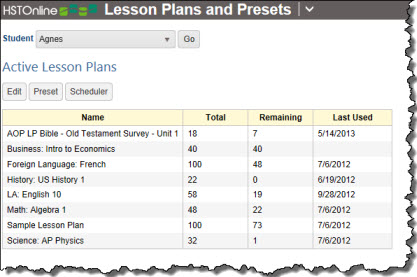
If you are using Lesson Plans, you can set a list of Active plans for your Student in the Lesson Plans and Presets area. This will help you keep track of your Student's progress through the plan.
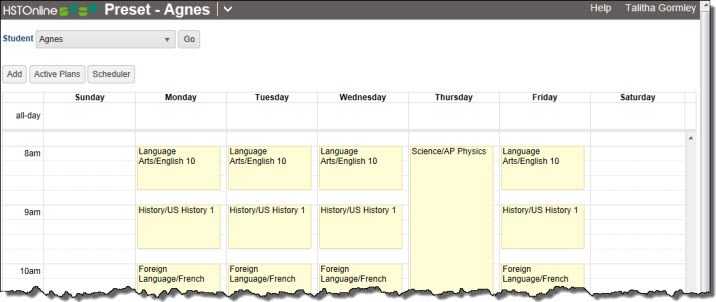
Whether you are using Lesson Plans or not, you might choose to set up Presets for HSTOnline to follow when creating Assignments manually or using the Scheduler tool. You can set items for the same time/block each day or at different times/blocks on different days.
Skills Progress
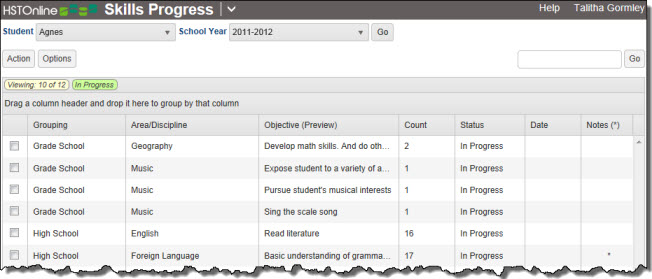
The Skills Progress area allows you to keep track of the Skills you have attached one or more of your Student's Assignments.
In this area, you can:
- View the Skills your Student is working on in the selected School Year.
- Mark one or more Skills as 'Completed' and enter a date completed value.
- Enter notes about your Student's progress in attaining the Skill.
- View the Assignments to which a selected Skill is attached.
Transcript Supplemental
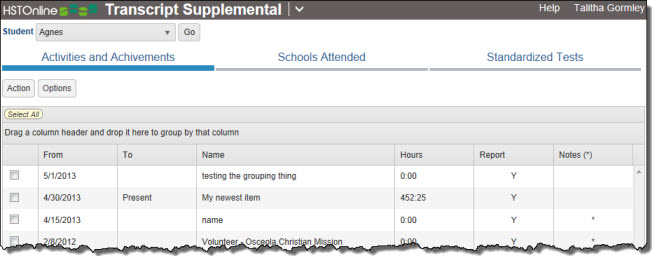
Use the Transcript Supplemental area to add additional information about your Student's schooling. You can choose to enter information regarding:
- Activities and Achievements: Use this area to enter details about your student's part-time jobs, volunteer activities, awards received, and other achievements which may be of interest to the colleges/universities he is applying to.
- Schools Attended: Enter information about other schools your child attended either prior to or in addition to your homeschool. This is a great place to mention co-ops or classes taken at the local community college or university, college summer programs, etc.
- Standardized Tests: Enter results details for any pertinent standardized tests your student has taken.
Reports:
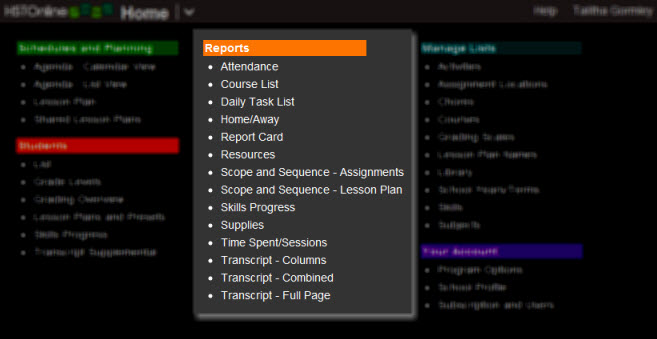
Create whatever reports you need for student to-do lists, report cards, etc. Reports are available when logged in under an Administrator or Teacher account and when logged in as Student if the Student's User Account has the 'Reports' permission.
Note: In addition to the reports listed below, you can use the Export feature on the Agenda - List View, Lesson Plan or Library pages to create a CSV document of the items you are viewing.
Attendance
Create an Attendance report for any date range your records. If Attendance is disabled in Program Options, this report will be unavailable.
Course List
Generate a list of Courses and their weighting, grading scale and resources. If the Course field is disabled in Program Options, this report will be unavailable.
Daily Task List
Create a to-do list for your Student that can include Assignments, Appointments, and/or Chores for the date range you specify.
Home/Away
Home/Away: A report detailing how many hours of schooling occurred at home or away locations for those who need to track such details. If the Assignment Location field is disabled in Program Options, this report will be unavailable.
Report Card
Generate a Report Card for any Student or School Year. You may also choose to include Progress notes you have entered into the Student's Grade Level area. If Grading is disabled in Program Options, this report will be unavailable.
Resources
Create a list of Resources used in your Student's Assignments for the date range and Subjects/Courses you choose.
Scope and Sequence - Assignments
This Scope & Sequence report will generate list of Topics from your Assignments according to the Subject/Course and date range you choose. If the Topic field is disabled in Program Options, this report will be unavailable.
Scope and Sequence - Lesson Plan
This version of the Scope and Sequence report will generate a list of Topics from your Lesson Plans according to the Plan and Subject/Course you choose. If the Topic field is disabled in Program Options, this report will be unavailable.
Skills Progress
Document your Student's Skills Progress with this report which lists each selected Skill, any progress notes you've entered for the Student regarding the Skill, and a list of Assignments which the Student completed while working on the Skill. If the Skills field is disabled in Program Options, this report will be unavailable.
Supplies
Use this report to create a list of Supplies needed for upcoming Assignments, or from the Lesson Plan you choose. If the Supplies field is disabled in Program Options, this report will be unavailable.
Time Spent/Sessions
This report will compile a breakdown of total Time Spent or Sessions for each Subject/Course for the Student and date range selected. If both the Time Spent field and the Sessions field are disabled in Program Options, this report will be unavailable.
Transcript - Columns, Combined, Full Page
Select any one of the three Transcript formats to use for your Student. You may include as many school years as you like and you can select which Subjects/Courses to include in the report. If Grading is disabled in Program Options, these report will be unavailable.
Manage Lists:
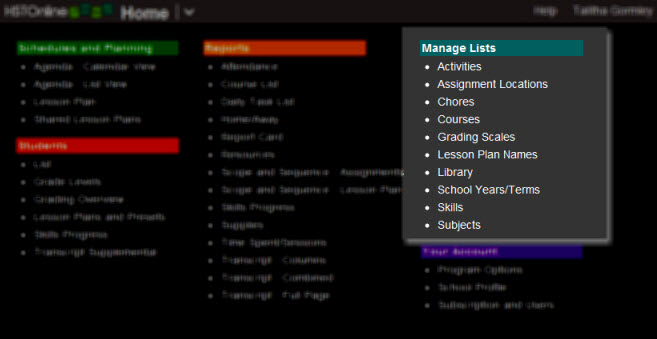
The area where you will create and maintain the lists of items used throughout the program: Subjects, Courses, Activities, School Years, etc. The majority of these areas are only available when logged in under an Administrator or Teacher user account. The Library area can be made available to Students when setting their User Account permissions.
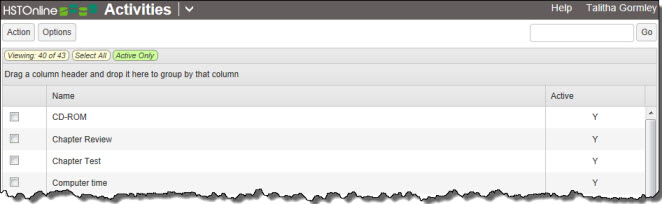
Activities
An Activity is a brief description of the type of work to be done in an Assignment: Lesson, Quiz, Test, etc. This is an optional field and this menu entry will be hidden if the Activity field is disabled in Program Options.
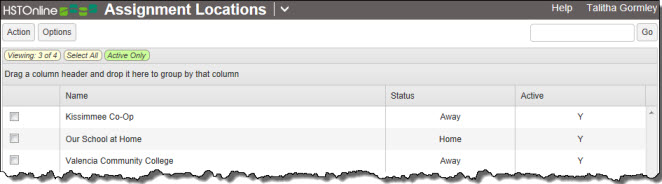
Assignment Locations
The Assignment Location field allows you to track where the learning took place: home, co-op, university, etc. This is an optional field and this menu entry will be hidden if the Assignment Location field is disabled in Program Options.
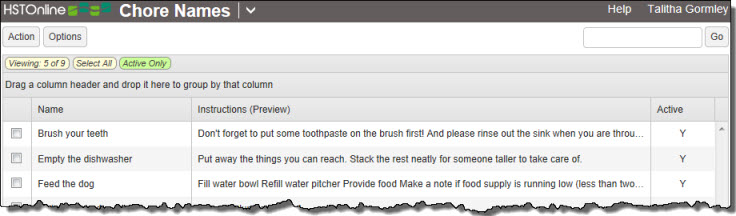
Chores
Use the Chores area to outline tasks - along with instructions - to be assigned to your Students to help out around the house and community as needed.
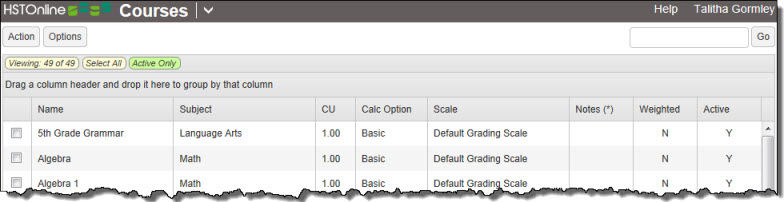
Courses
Courses allow you to: further define an area of study within a Subject, set up weighted grading, set up credit units for Transcripts, and/or use multiple grading scales within your homeschool. This is an optional field and this menu entry will be hidden if the Course field is disabled in Program Options.
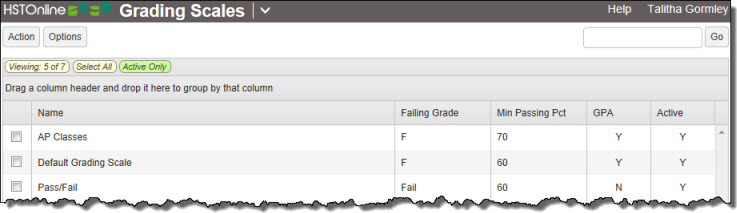
Grading Scales
If you choose to grade your Student's work, you can set the Grading Scales to be award the letter grades you want for different percentage grades. This is an optional feature and this menu entry will be hidden if the Grading is disabled in Program Options.
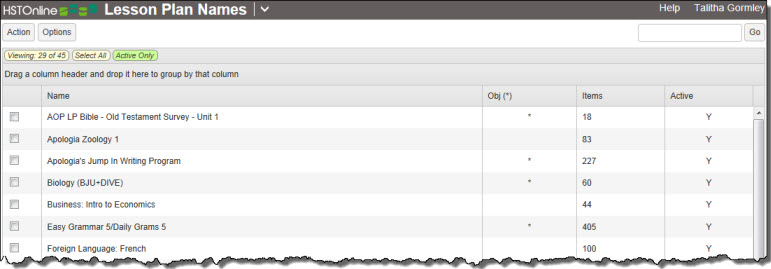
Lesson Plan Names
Use the Lesson Plan Names area to create and manage the names of your Lesson Plans.
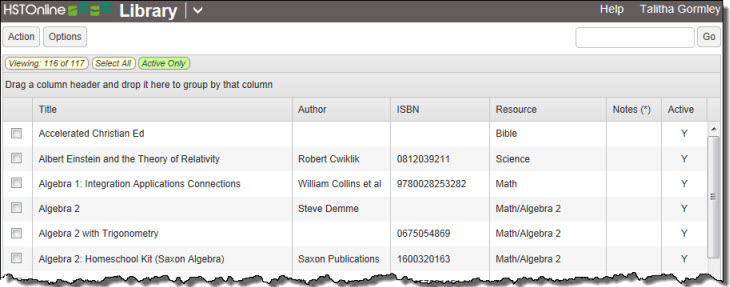
Library
The Library is the storehouse for all your books, textbooks, readers, etc. which will be used as Resources for your Student's assignments.
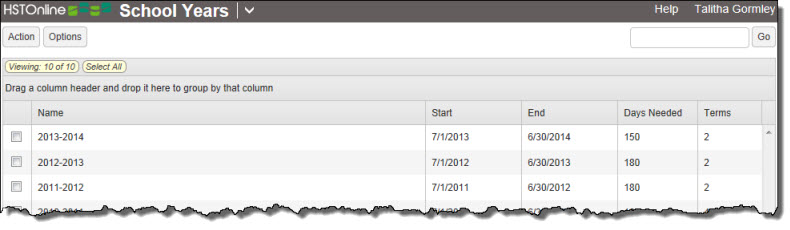
School Years/Terms
Create School Years and Terms for each year of homeschooling, which will be used to generate Attendance reports, Report Cards, Transcripts, etc.
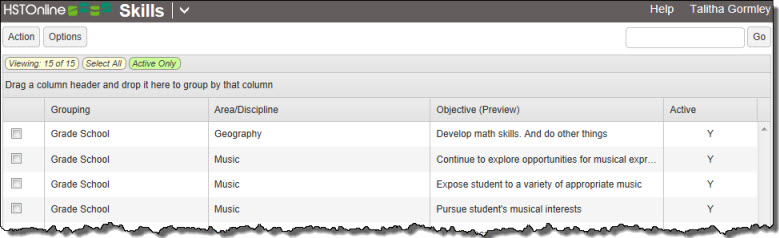
Skills
Create and maintain a list of Skills your Students are working to master - either by grade level, subject area, or whatever classification works best for you. This is an optional field and this menu entry will be hidden if the Skills field is disabled in Program Options.
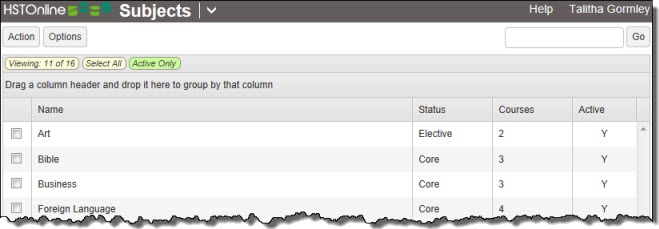
Subjects
Create and maintain the list of Subjects your Students will be studying throughout their homeschool careers.
Your Account:
The "Your Account section of the HSTOnline menu contains areas only viewable and accessible when logged in under the Administrator username for your HSTOnline account.
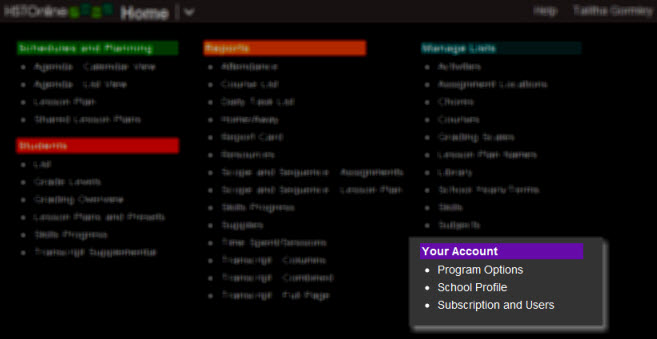
Program Options
Use the Program Options link to set school-wide parameters for your HSTOnline account.

- Agenda: Use these options to customize the Agenda. You can choose to use Start/End Times or Blocks for your Appointments, Assignments and Chores. You will need to make this choice whether you actually fill those fields or not.
- Attendance: Use these options to customize how Attendance is marked in the Agenda, and how your daily school hours are logged. These options allow you to enable Auto-Attendance to have HSTOnline create attendance entries for any date which has at least one completed Assignment.
- Grading: Use these options to enable or disable Grading and to set your preferred calculation method.
- Optional Fields: Choose which Fields you want to include. Disabling fields will disable some features and reports, all of which are outlined on the Program Options Help Page.
School Profile
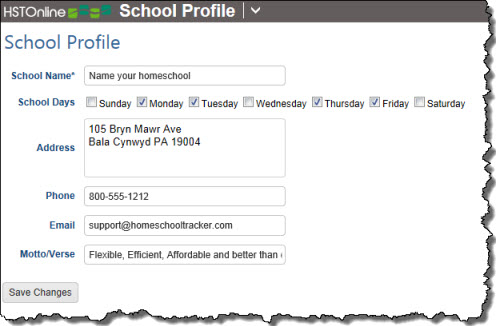
In the School Profile area you will:
- Create a name for your homeschool: Your school name can be anything you like up to 150 characters. The name you select will appear in the header of your reports and on your Report Card and Transcripts.
- Set which days of the week are considered 'School Days': When you create Appointments, Assignments and Chores over a range of dates you can choose whether or not to skip over non-school days. Which days are considered 'school' or 'non-school' is determined by your selections here. You can also set Days Off for special days you want to skip over and designate them as Holiday, Vacation or Other and add a short description as well.
- Enter contact information for your school: Enter an address, phone number, email and motto/verse as you choose. You can choose to include all or parts of your school contact information on the Attendance, Report Card and Transcript reports. You can choose to include your motto/verse on the Attendance report or Report Card.
Subscription and Users
The Subscription and User Accounts page will show you information about your Subscription and the User Accounts you have set up. Each Student in your school can have their own username and password so that they can view their own schoolwork and make changes to their records based on the permissions you give to their account. In addition at the base subscription level, you can create a user account for one additional teacher. Additional student and teacher accounts can be purchased along with your yearly HSTOnline subscription. Please contact Support for more information.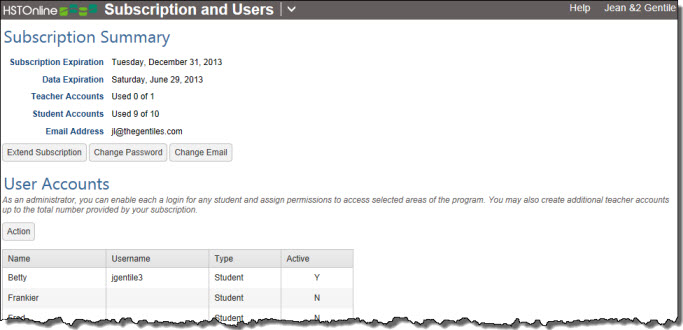
- Subscription Summary: In this section, you will find your Subscription expiration date and Data expiration date. Your data is retained for 90 days after the date your subscription expires as a grace period. You can re-subscribe at any time during that 90 days and retain access to all the data you have previously entered. After the 90 day window, your data will is scheduled to be deleted and will be removed during the next purge process. Here you can also see how many of your Teacher and Student accounts are in use, extend your subscription, or change your password or registered email address.
- User Accounts: Each time you enter a Student into your database, an entry will be made here for the Student's name. You can then choose to activate the Student's user account, creating their username and password, and setting the parameters for their access to the database.